Looking for IPTV on Firestick in the UK? Start with the service you want to watch, rather than a download code or a promise of every channel. This guide explains a straightforward official-app setup, the checks to make before paying, and what to try if playback keeps stopping.
What you need before you start
IPTV means television delivered over an internet connection. A Fire TV Stick is the device that runs the app; the app and the streaming service are separate parts of the setup. Some services are free to access, while others require a subscription.
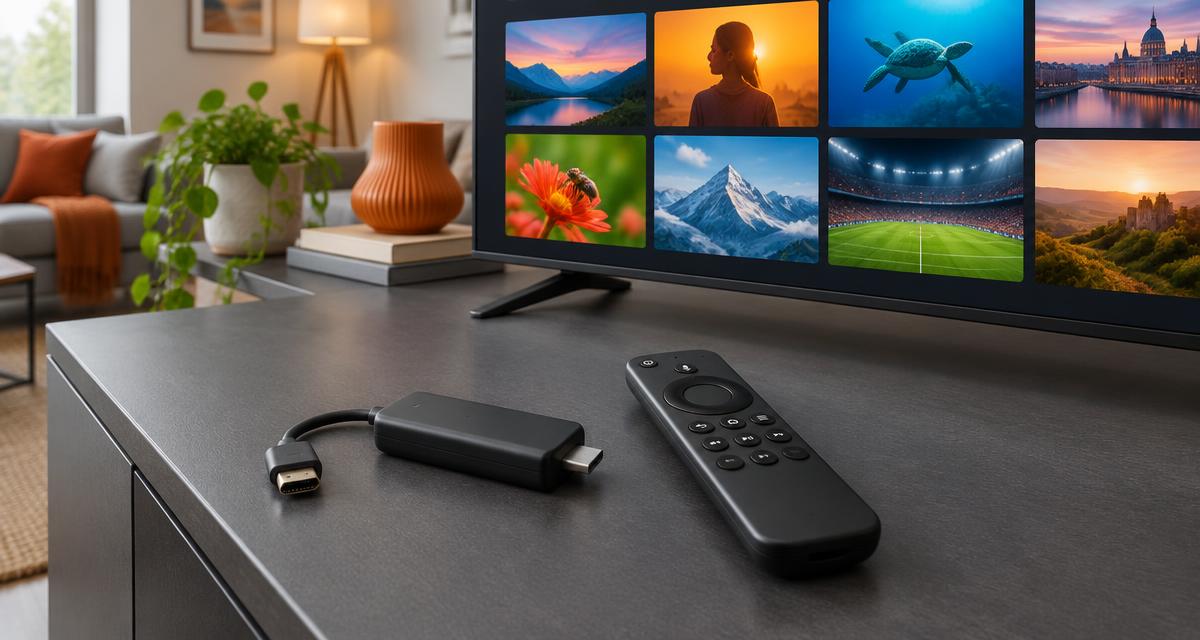
- A Fire TV device connected to an HDMI input on your television, powered according to Amazon's instructions.
- A working internet connection and an Amazon account for device setup.
- An official streaming app that supports your exact Fire TV model and UK region.
- The service's own account, plus any subscription or TV Licence that your viewing requires.
Check your Firestick model and app compatibility
Do not assume that an app works on every device carrying the Fire TV name. Check the model listed in your device settings, then compare it with the streaming service's supported-device page and the app's Amazon listing. Software, model and regional availability can all affect support.
Amazon's software list includes both Fire OS and Vega OS devices. For example, the Fire TV Stick 4K Select uses Vega OS. An Android installation guide is not proof that an app works on your particular Fire TV device. If you cannot find an app in the store, check the publisher's current guidance before subscribing.
How to set up IPTV on Firestick
These steps use the official app-store route. Menu names can vary between Fire TV models and software versions.
- Connect the Fire TV Stick to your TV, attach its power supply, select the correct HDMI input, and follow the on-screen setup to connect to the internet and your Amazon account.
- Use the Fire TV search to find the exact name of the streaming service you want to use.
- Open its app listing. Check the publisher, device compatibility, region and any subscription requirements before selecting Get or Download.
- Launch the installed app. Sign in using the service's official instructions; some apps show an activation code to enter on the service's website.
- Choose a programme and test playback. If you are considering a paid service, confirm the channels, content rights, device support and cancellation terms before paying.
Which IPTV app should you use?
For a broadcaster or streaming platform, use its official app when your model is supported. Check the current UK device guidance for services such as BBC iPlayer or ITVX rather than assuming that all models are compatible.
A third-party IPTV player is different: it is software for playing content supplied separately. Installing a player does not include a subscription, guarantee stream quality or make unlicensed channels legal. Only enter account details supplied by a service you have checked, and never share those details publicly.
- Look for a recognisable publisher and clear support information.
- Confirm that the service has the right to distribute the programmes you want.
- Avoid unknown download codes, modified apps and requests to disable device safeguards.
- Ask about your exact device model before buying; do not rely on a generic 'works on Firestick' claim.
Is IPTV legal, and do you need a UK TV Licence?
IPTV is a delivery technology, not a licence to distribute programmes. Use services authorised to offer the content you watch. Installing an app or using a VPN does not change the rights to that content.
TV Licensing says you need a TV Licence to watch or record programmes live on any TV service, or to use BBC iPlayer, on any device. Watching only on-demand content on services other than BBC iPlayer generally does not require one. Check the official TV Licensing guidance for your circumstances, including any exemptions.
How to fix buffering on Firestick
Buffering can come from your home connection, the app, the device or the streaming service. Test each part rather than assuming the problem is always your broadband.
- Try another programme in the same app, then a different official streaming app. If only one service fails, check that service's status and support guidance.
- Restart your Fire TV and router. Pause large downloads or other heavy internet use while you test.
- Check the connection near the TV. Move the router or reduce obstructions if the signal is weak; use a compatible Ethernet adapter if your model supports one.
- Install available device and app updates. If one app still misbehaves, follow the publisher's cache-clearing or reinstall instructions; you may need to sign in again.
- Try a lower playback quality where the app offers it. Use that service's published speed requirements rather than treating one speed figure as a guarantee for every stream.
- If the issue persists, contact the service with your device model, app version and the time of the failure. Do not send passwords or full account credentials.
Frequently asked questions
Check your device before choosing a plan
Ask IPTV IN UK about your exact Fire TV model, available apps and content before ordering. Confirm compatibility and distribution rights first.
Sources
Official guidance checked 4 November 2026. App support and menus may change.